Common QuickBooks setup mistakes when sorting personal and business amounts

A clean-looking QuickBooks register can still hide bookkeeping errors. Common QuickBooks setup mistakes to avoid include misclassifying contacts, adding bank-feed activity without reviewing it, deleting transactions that need correction, and leaving personal amounts uncategorized. Connecting each transaction to the right person and purpose helps your records tell a clearer story.
These errors are easy to make: QuickBooks can import activity and suggest categories, but each suggestion still needs careful review. Learn how to classify customers, vendors, and employees; review bank-feed transactions before adding them; correct mistakes without losing useful records; and categorize personal transactions as an owner contribution or draw. Matching imported activity to existing invoices or bills also helps prevent duplicates. Together, these habits give you a more reliable view of business activity and keep personal and business amounts distinct.
Table of Contents
1. Classifying customers, vendors, and employees correctly
QuickBooks lists customers, vendors, and employees for different purposes. Assign each contact the right type so sales, bills, and payroll activity appear in the appropriate records. A customer belongs in the customer list, a supplier in the vendor list, and a worker paid through payroll in the employee list. Listing an employee as a customer, for example, can clutter customer reports and make payroll records harder to review.
Connect each transaction to the person or business involved. When entering a check, bill, or expense, select the relevant vendor; for an invoice or customer payment, select the customer. A transaction without a name may still affect an account balance, but it is harder to trace who was paid or what a customer owes. Before saving, confirm the name fits the transaction’s purpose.
Keep customer lists manageable by avoiding unnecessary sub-customer records. A separate sub-customer can generate a separate invoice, so duplicate records may lead to billing the same customer twice. Use a sub-customer only when the billing relationship genuinely needs separate tracking. If two entries refer to the same person, carefully consolidate the contact information instead of treating each entry as a new customer.
Record customer payments through Receive Payments before creating or recording the bank deposit. This connects the money to the open invoice and marks it paid. If a customer pays two invoices together, apply the payment to both, then record the combined deposit. Entering the deposit as new income can count the money twice because the invoices already recorded the sales.
Apply credits and overpayments to the customer’s account instead of recording them as unrelated income. For example, if a customer pays more than an invoice balance, keep the excess visible as a credit or unapplied payment until it is applied appropriately. This leaves the remaining credit traceable on the customer record and prevents a later invoice from appearing unpaid when the customer has already paid more than the original amount.
Set up payroll by creating an employee profile and entering the employee and tax information needed for processing. Add applicable withholding details to the employee’s records and review them before running payroll. QuickBooks tracks payroll taxes owed in the Payroll Liabilities account as payroll is processed. Use the Pay Liability window to record payroll tax payments and keep those balances current.
Keep vendor reporting in view when classifying non-employee payments. The Internal Revenue Service requires businesses to report certain payments to non-employees, including independent contractors and freelancers, on Form 1099-NEC or Form 1099-MISC. Assigning those payments to the correct vendor helps keep the transaction history organized for reporting and review.
2. Preventing missing or duplicate transactions
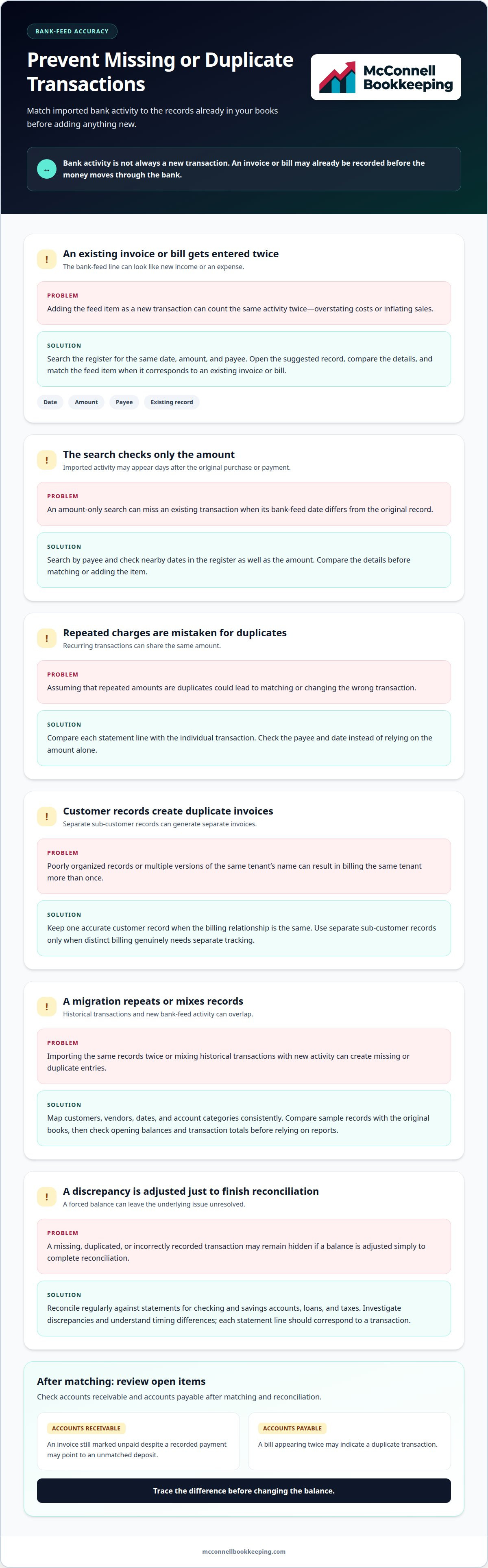
QuickBooks Online may not alert you when a transaction duplicates an existing entry. A second expense can overstate costs, while duplicate income can inflate sales. Before adding a bank-feed transaction, search the register for the same date, amount, and payee. If an invoice or bill is already recorded, match the feed item to it. This connects banking activity to the underlying transaction instead of creating another entry.
Matching matters because an invoice or bill may be entered before money moves through the bank. Adding the later bank-feed line as new income or an expense can count the same activity twice. Open the suggested transaction, compare its details with the existing record, and match them when they correspond. If no existing transaction fits, review the payee, date, amount, and account before adding it.
Check imported dates as well as amounts. A bank-feed transaction may appear days after the original purchase or customer payment, so an amount-only search can miss an existing record. Search by payee and check nearby dates in the register. For recurring charges, compare the statement line with the individual transaction instead of assuming repeated amounts are duplicates.
Customer structures can also create duplicate invoices. QuickBooks generates separate invoices for each sub-customer, which can result in the same tenant being billed more than once when records are poorly organized. Avoid creating a sub-customer for every variation in a tenant’s name or contact details. Keep one accurate customer record when the billing relationship is the same, and use separate records only when distinct billing requires them.
During a data migration, avoid importing the same records twice or mixing historical transactions with new bank-feed activity. Map customers, vendors, dates, and account categories consistently, then compare sample records with the original books. Check opening balances and transaction totals before relying on reports. A missing vendor bill can distort accounts payable, while an imported duplicate can inflate expenses.
Reconcile accounts regularly to find missing, duplicated, or incorrectly recorded transactions. Compare QuickBooks with statements for checking and savings accounts, loans, and taxes. Investigate discrepancies instead of adjusting a balance simply to finish the reconciliation. Reconciliation works best when every statement line has a corresponding transaction and timing differences are understood.
After matching and reconciliation, review accounts receivable and accounts payable for open items. An invoice marked unpaid despite a recorded payment may point to an unmatched deposit; a bill appearing twice may indicate a duplicate. Correcting these records makes customer balances, vendor obligations, and cash-flow reports more useful for decisions.
3. Reviewing QuickBooks Online bank-feed suggestions and rules
QuickBooks Online places imported banking activity in the For Review tab before it enters your books. Review each suggestion rather than accepting it automatically. Check the transaction date, payee, amount, and proposed account category. If a coffee shop purchase appears as office supplies, correct the category before adding it. An incorrect category can affect business records, reports, and tax filings.
Bank rules can categorize transactions that share details, such as a recurring supplier name. Test each rule against the transactions it is meant to handle. Avoid setting rules to add transactions automatically, since an unexpected variation could be recorded without review. A supplier, for example, may charge for different items under the same name, requiring different expense categories.
Personal activity imported into a business account needs a category, not deletion. Keep the transaction in the register and categorize it as an owner’s draw or contribution, depending on who paid and which account was used. Then reconcile the account so the recorded balance matches the bank statement. This preserves a clear record of the money movement.
Review Undeposited Funds, also called Payments to Deposit, to see whether recorded customer payments still need to be deposited. An amount left there may represent a payment that has not been grouped with the actual bank deposit. Compare the account balance with deposit records and investigate old or unexpected entries. Skipping this review can leave duplicate payments or incorrect deposit totals in the books.
Use the profit-and-loss statement to review income and expenses, and the balance sheet to review assets, liabilities, and equity. Look for unexpected changes, such as income appearing in an expense account or a balance that does not fit the transaction history. Trace unusual figures to their underlying entries. Correcting a transaction at its source helps keep future statements accurate.
Close the books at year-end and lock the closed period to prevent accidental changes. If a figure changes after closing, review the audit log and transaction details to trace the edit. The log can help explain a new balance or statement total. Record the reason for any correction clearly in the transaction record.
Enter opening balances from records showing the business’s position on its QuickBooks start date. Include relevant account balances, such as bank, credit card, loan, accounts receivable, and accounts payable balances. Tie each amount to supporting records, and avoid importing the same history twice, which can distort the starting position.
You can correct a clear, isolated categorization error yourself if its effect is easy to trace. For repeated errors, uncertain opening balances, payroll entries, or changes affecting closed periods, a bookkeeper or accountant can help assess the records and corrections.
For sales tax, set QuickBooks preferences according to applicable state sales tax law. The available preference can record tax owed as of the invoice date or when payment is received. Choose the method that fits the business’s circumstances and applicable state requirements.
4. Voiding or reversing transactions instead of deleting them
Deleting a linked transaction can remove context that explains later entries. QuickBooks users should generally void rather than delete linked transactions. Voiding leaves a zero-amount record, while deletion removes the entry from the register. If a bill was entered twice, for example, identify the duplicate and preserve a clear record of the correction instead of erasing transaction history.
Before changing a transaction, identify what it connects to. An invoice may be linked to a customer payment, or a bill to a vendor payment. Removing one entry without addressing linked activity can leave account balances or customer and vendor records inconsistent. Review the transaction date, amount, name, and linked entries, then choose a correction that reflects what actually happened.
A correction may require a reversal or replacement entry if the original transaction was valid but recorded incorrectly. For instance, a payment assigned to the wrong expense account may need reclassification, not cancellation. Check the chart of accounts and the transaction’s purpose before changing its category. If the error affects sales tax, preserve the supporting details and ensure the corrected entry reflects the original transaction.
Handle closed periods with extra care. A transaction from a closed period can affect statements already prepared or reviewed. Consult an accountant before changing the record, rather than deleting or voiding it without understanding the effect. Keep the reason for the correction and supporting details with the transaction so later reviews can distinguish an intentional adjustment from an unexplained change.
Personal purchases in a business register need proper classification, not deletion. Keep the bank transaction so the register can reconcile to the statement, then categorize the amount as an owner’s draw or contribution, depending on how the funds moved. A personal charge paid from a business account, for example, differs from business funds deposited into the account by the owner.
Transaction rules can repeat errors if they apply the wrong category. Before using a rule routinely, test it against the transactions it should affect. A rule based on a vendor name might capture a purchase that belongs in another expense account. Check the resulting category and account before allowing the rule to affect more entries.
When correcting an entry, preserve the link between the transaction and its purpose. A customer refund, vendor bill correction, and personal withdrawal each affect different accounts. Review the resulting balances and statements after the change, especially if the transaction involves sales tax or a closed period. Careful corrections make the register easier to follow and reduce confusion during future reviews.
5. Categorizing personal amounts as owner contributions or draws
QuickBooks Online should show whether personal money entered or left the business. Categorize an owner’s personal funds deposited into a business account as an owner contribution. Categorize a personal expense paid from a business account as an owner’s draw. These entries keep personal activity visible without treating it as business income or an operating expense.
Don’t delete a personal transaction imported from a bank feed. Keep it in the register, identify the direction of the funds, and assign the appropriate owner contribution or draw category. An owner’s personal purchase paid with a business debit card, for example, is not an office expense. Leaving it uncategorized can distort expense totals and make the books harder to understand.
Set up the chart of accounts around the business’s actual activity. Use clear account names and group similar income, expense, asset, and liability accounts logically. A small business that buys routine office materials could group “office supplies,” “miscellaneous supplies,” and “materials” under one suitable expense category when they represent similar purchases. Avoid creating a separate account for every vendor or minor variation.
Redundant categories make reports harder to compare. If “shipping,” “postage,” and “mailing costs” describe the same type of expense, choose one consistent category and carefully consolidate duplicates. Rename unclear accounts so their purpose is obvious, and remove unused categories only after reviewing their transaction history. A focused chart of accounts helps owners see meaningful patterns without sorting through nearly identical labels.
Apply the same classification logic each time you enter a business expense. A software subscription should not shift between office expenses, subscriptions, and miscellaneous costs without a clear reason. Consistent categories make comparisons between periods more useful. If an expense serves more than one purpose, choose the category that best reflects its primary business use and apply that approach consistently.
Bank-feed rules can speed up categorization, but a rule based only on a payee name may misclassify different purchases from that vendor. Test the rule against the transactions it should affect, then review the suggested account before adding entries. A general retailer, for example, may sell both office supplies and personal items. A payee match alone may not distinguish them, so review each transaction’s details.
Before merging or renaming accounts, review how existing entries affect reports and account balances. A change to the chart of accounts can alter how past expenses appear, even when the underlying transactions stay in QuickBooks Online. Keep categories organized, preserve useful distinctions, and correct misclassified entries at their source. If personal transactions and duplicate categories have become difficult to untangle, get help with a books cleanup to restore a consistent structure.
McConnell Bookkeeping: QuickBooks Online Training
McConnell Bookkeeping offers QuickBooks Online Training to help business owners build confidence in their bookkeeping workflows. Use this support when you’re unsure how to classify transactions, review bank-feed entries, or keep personal and business amounts distinct. Clear processes make routine recordkeeping more consistent and help you understand what your reports show.
If setup mistakes have affected your records, McConnell Bookkeeping’s Book Clean-up service can help organize them and address errors. Monthly Bookkeeping includes monthly bank reconciliations to keep recorded account activity aligned with bank statements, while Financial Analysis provides insights for reviewing business performance. The right next step depends on whether you need guidance using QuickBooks Online, help correcting existing records, or ongoing bookkeeping support.
Contact McConnell Bookkeeping to discuss the support that fits your QuickBooks needs.
Build a steadier bookkeeping routine
Reliable QuickBooks records come from consistent habits, not a one-time setup. Make transaction review part of your regular workflow, keep clear notes for unusual entries, and address discrepancies while their details are easy to trace. This steady approach helps business owners make informed decisions as activity changes.
The common QuickBooks setup mistakes to avoid are easier to prevent when your records receive ongoing attention. McConnell Bookkeeping can support that process with Monthly Bank Reconciliations, Financial Statement Preparation, and Books Cleanup, helping you maintain organized records and useful reports as your business moves forward.
Take the next step toward a clearer bookkeeping process and contact McConnell Bookkeeping today. With consistent support, you can spend less time second-guessing your books and more time focusing on the work ahead.
Frequently Asked Questions
What are the most common QuickBooks setup mistakes for small businesses?
Common QuickBooks setup mistakes to avoid include choosing unclear accounts, misclassifying transactions, and accepting bank-feed suggestions without review. Another risk is entering opening balances that don’t match the business’s records. Importing an old transaction and also entering it manually, for example, can distort account totals. A consistent setup makes transactions easier to trace and gives business owners clearer reports.
How do you connect bank and credit card accounts without duplicating transactions?
Connect each bank or credit card account once, then review downloaded activity before adding it to QuickBooks. A transaction entered manually may also appear through the feed, so compare the amount, date, and payee and match it to the existing record. If the feed shows a duplicate connection or repeated history, pause before accepting transactions and inspect the account register.
How do you set up customers, vendors, products, and services accurately?
Create separate records for customers and vendors, using names that distinguish businesses or people with similar details. For products and services, choose descriptions and income accounts that reflect what the business actually sells. Keep a consulting service separate from a physical product, for example, if they need distinct sales reporting. Review item-to-account assignments before creating invoices, since those choices shape how sales appear in reports.
How should you configure user permissions and protect QuickBooks data?
Give each person who uses a QuickBooks company file an individual login, role, and permissions suited to their work. Avoid shared credentials, which make it harder to identify who entered or changed a transaction. Limit administrative access to people who need it, and protect account passwords. Keep a data-loss plan so a computer problem doesn’t leave the business without access to important bookkeeping records.
How often should you reconcile QuickBooks accounts, and what setup errors cause discrepancies?
Reconcile QuickBooks accounts monthly to compare recorded balances with account statements. Discrepancies can come from duplicate entries, missing transactions, incorrect dates, or opening balances that don’t match the records. For businesses in Mesa, Phoenix, Gilbert, Tempe, Chandler, and Scottsdale, regular reconciliation helps keep financial records organized. If a difference remains after reviewing transactions, trace it to its source rather than forcing the reconciliation to balance.



Comments